How to Make Facebook Group Push Notifications Work For You
A lot can happen in a Facebook group during a single day. Members ask questions, share updates, post recommendations, and start discussions that can quickly fill with replies.
Local service providers, real estate professionals, and agencies often watch those conversations for opportunities. Facebook group push notifications can help you stay informed, but notifications don’t always arrive at the right time.
Some alerts appear late, others never show up, and valuable posts can get buried before anyone notices them.
In this guide, you’ll learn five practical ways to improve your notification experience and get more leads.
TL;DR
Here are five ways to make sure your Facebook group push notifications are working:
Switch from highlights to all posts
Review your Facebook notification settings
Focus on your most important Facebook groups
Use multiple notification channels
Use Groups Watcher for faster Facebook group alerts
Facebook Group Notification Options Explained
Facebook gives you four notification options when you join a group. Each one changes how often updates reach you:
All posts: Facebook sends a notification whenever a member creates a new post. Active forums can publish dozens of new threads every single day, so alerts can pile up quickly.
Highlights: You only get alerts for selected discussions. The smart algorithm decides what a user sees based on activity and engagement.
Friends’ posts: Select this option if you only want to know when someone from your Facebook friends list creates a post inside the group. Updates from other people won’t trigger alerts.
Off: It completely silences the group when you turn notifications off.
These settings help explain why some posts never reach your screen.
A group set to “Highlights” may filter out discussions that Facebook doesn’t consider important. “Friends’ posts” ignores activity from most members. Even “All posts” can become difficult to keep up with in busy communities.
Get high intent leads from Facebook groups.
Turn Facebook groups into a lead source for your business. Book a demo to see if it fits.
Book a demoTo control notifications, open the group page and click the three dots menu on the upper right-hand corner. Then, choose “Manage notifications”.
Personal settings, however, may look different if you’re a group admin.
5 Ways to Receive All Facebook Group Push Notifications
A few small changes can help you receive group alerts more consistently, such as:
1. Switch From Highlights to All Posts
If you use Facebook groups to find recommendation requests, referrals, customer questions, or local opportunities, seeing new posts quickly can make a difference.
Facebook sets many groups to highlight by default. That option only shows selected activity, which means many discussions never trigger an alert.
It takes just a few steps to change your alert frequency. Launch the official Facebook app installed on your mobile device and open the group you want to follow closely. You may need to manually visit the group page first.
Next, tap the “Joined” button near the cover photo banner or open the menu.
From there, choose your notification preferences and select the option that gives the most coverage. Move away from highlights if you want more visibility into new discussions.
Change your preference to all posts to receive every single update.
Local service providers, real estate professionals, agencies, and community managers often use it for their highest-priority groups, where missing a post could mean missing an opportunity.
2. Review Your Facebook Notification Settings
Even if you enable notifications for an important Facebook group, alerts still won’t appear if your main Facebook settings block them.
For businesses that rely on Facebook groups for leads, referrals, or customer requests, a small setting can make the difference between catching a post immediately and missing it altogether.
Group settings only work if your main Facebook preferences allow notifications to reach your screen.
Open the settings menu inside your Facebook account and click “Manage notifications”. This area controls how Facebook delivers alerts. You can also use this section to stop notifications during certain hours if you don’t want interruptions at night.
Check that your phone allows Facebook to display alerts. The app also needs permission to communicate with your device in the background.
Take a few minutes to adjust notification options and clear old cache files if needed. A quick update often fixes common delivery issues.
After making changes, test a few settings to confirm everything works properly. A notification setting inside the group won’t help if Facebook can’t deliver the alert in the first place.
3. Focus on Your Most Important Facebook Groups
Not every group deserves the same level of attention. Too many alerts can make important discussions harder to spot.
That becomes a bigger problem if you use Facebook groups to find recommendation requests, referrals, buying inquiries, or industry conversations. A valuable post can easily get lost among dozens of updates from groups you rarely check.
Start by deciding which communities bring the most value. Industry groups, local communities, and forums that contain your real-life friends usually deserve higher priority.
You can also stop notifications from groups you rarely check. Silencing the rest reduces clutter and makes important alerts easier to notice.
Many users pin their favorite groups for quicker access. That feature works well on an iPhone and also on an iPad.
Aside from that, direct shortcuts keep your favorite things near the top of your menu. Group icons remain shown in a dedicated place, so it’s easier to check activity whenever you have time.
Reserving your attention for high-priority groups can help you spot important posts faster, especially in communities where new opportunities don’t stay visible for long.
4. Use Multiple Notification Channels
Relying on one notification source creates a single point of failure.
Don’t depend entirely on a single mobile app. Set up alerts through your desktop browser as well. Facebook can display pop-up notifications on your computer even when you aren’t actively checking the site.
Some users also connect backup tools that help track updates. If you join a third-party reading platform, follow the setup instructions carefully. You can also configure services to send alerts through additional channels.
Desktop browsers often display a permission request before notifications appear. Click “Allow” if you agree to receive pop-up alerts.
Adding more than one delivery method increases the chance that updates reach your screen. You can further route important activity to your email inbox for extra visibility.
So, if one notification channel fails, another can still help you catch an important post before the conversation moves on.
5. Use Groups Watcher for Faster Facebook Group Alerts
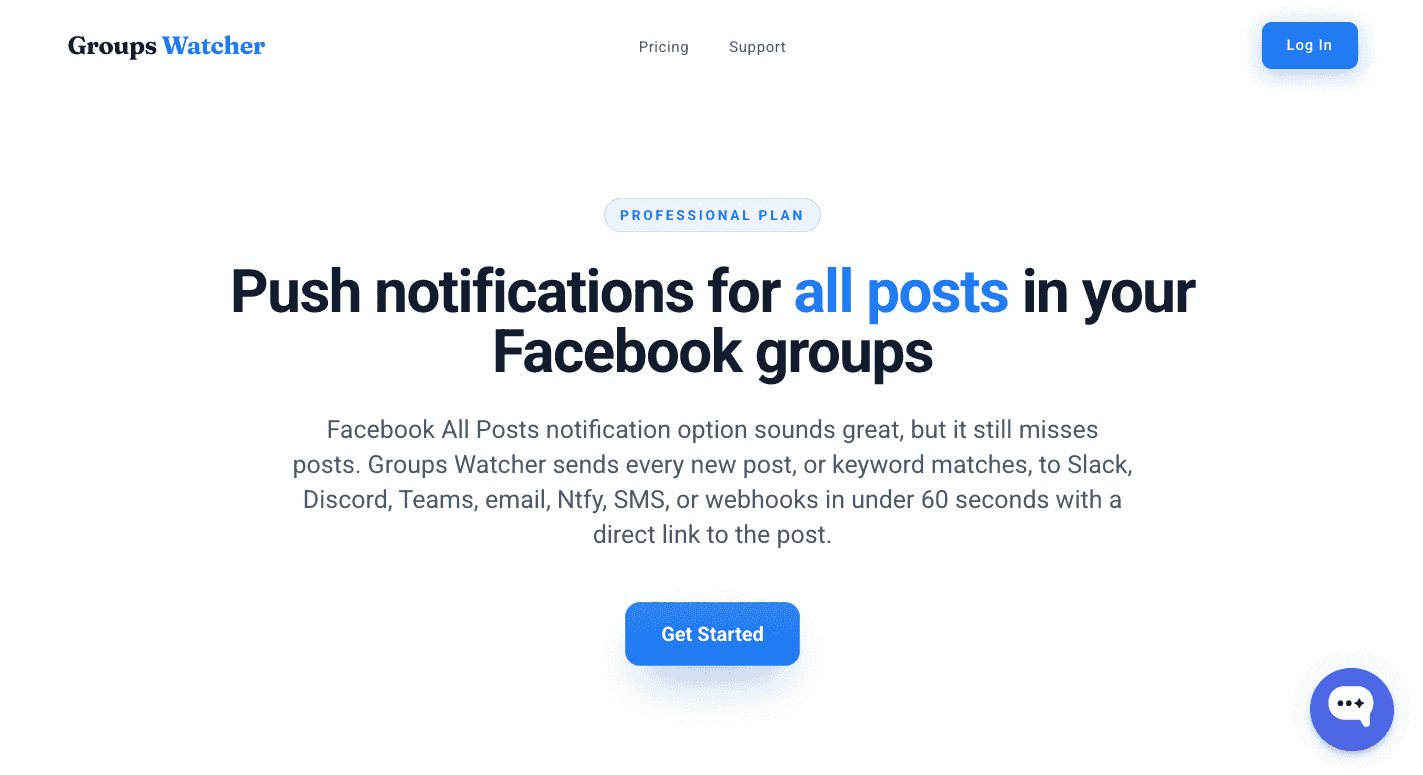
The first four tips can improve Facebook group push notifications, but they still rely on Facebook to decide when an alert appears.
Groups Watcher gives you another option. Rather than waiting for Facebook notifications, it monitors your selected private and public groups and sends alerts when new posts appear.
What Groups Watcher Does Differently
Groups Watcher sends alerts, in less than 60 seconds, directly to the places you already check throughout the day.
You can route notifications to:
Slack
Discord
Microsoft Teams
Email
SMS
Ntfy
Webhooks
Every alert includes a direct link to the post. Open the link, review the conversation, and respond before the discussion fills with comments.
Choose Every Post or Keyword Alerts
Not every group needs the same monitoring approach.
Some users track every new post in their highest-priority communities. Others prefer keyword alerts that focus on phrases such as “looking for,” “recommend,” or “need help.”
A local contractor might monitor every post in a neighborhood group but only track service-related keywords in larger communities. Through that, you can keep notification volume under control and surface stronger opportunities.
How Groups Watcher Works
Setup takes only a few minutes:
Step 1: Choose the Facebook groups you want to monitor.
Step 2: Decide where alerts should arrive, such as Slack, Discord, Teams, email, SMS, or another channel.
Step 3: Open the direct link from the alert and reply while interest remains high.
Don’t Miss Any Important Notifications With Groups Watcher
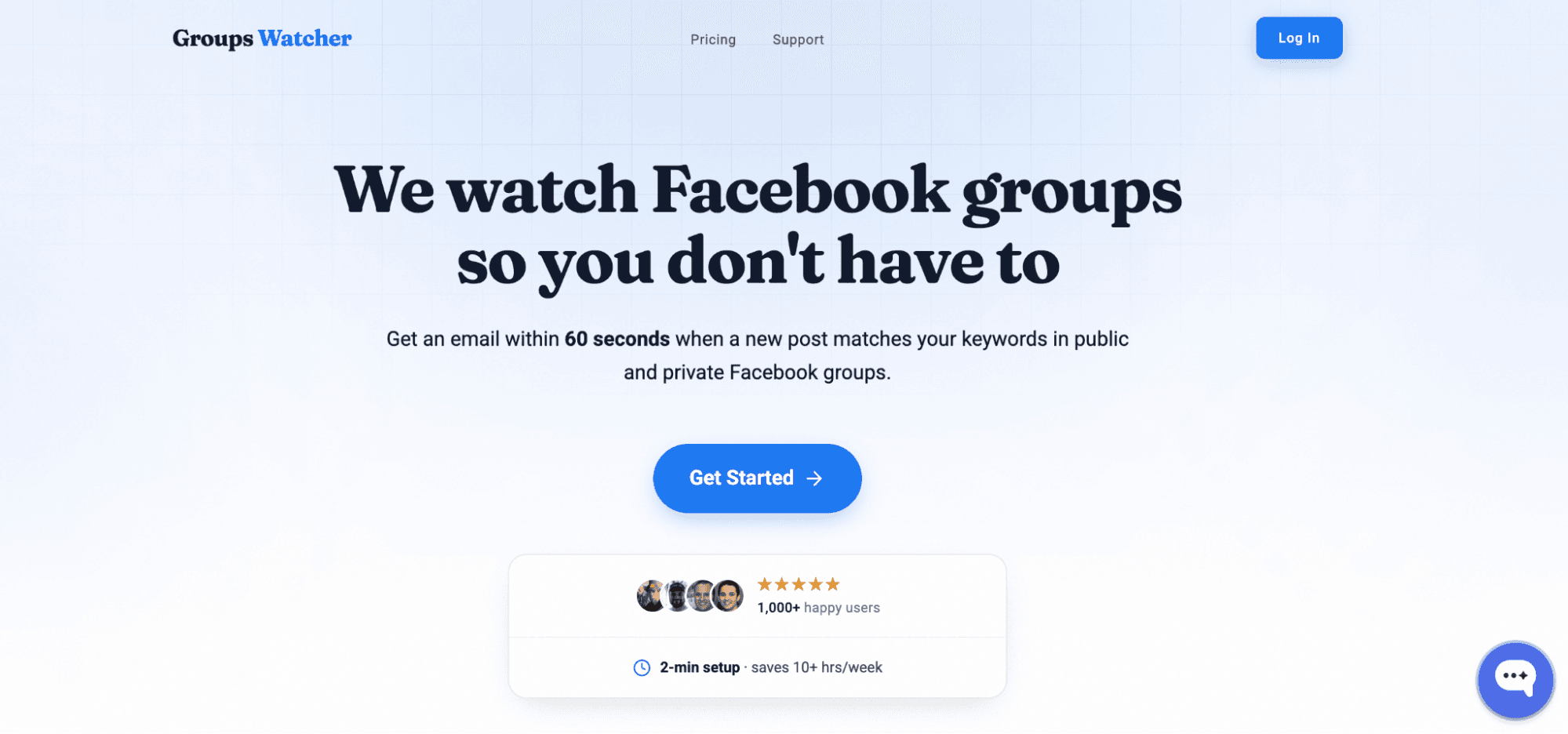
Facebook group push notifications can help you follow discussions, but they don’t always arrive when you need them. A recommendation request can collect several replies within minutes, and some opportunities disappear before Facebook sends an alert.
Groups Watcher helps you monitor private and public Facebook groups more closely. You just choose which ones and how alerts should work.
It handles the monitoring on its own systems, so you don’t need to use your Facebook account, keep a browser extension running, or have admin access to the groups you want to track.
With Groups Watcher, you can:
Get alerts for every new post in selected Facebook groups
Receive notifications in under 60 seconds
Choose keyword alerts for phrases that signal buying intent
Track brand mentions and conversations for Facebook social listening
Get alerts from supported groups even if you aren’t a member
Send alerts to Slack, Discord, Teams, email, SMS, Ntfy, or webhooks
Set up automatic comment templates and be the first one to respond
Spot local service leads before competitors find them
For businesses that depend on Facebook groups, faster alerts mean faster responses and more opportunities.
Group activity moves quickly. Use Groups Watcher to keep important posts from slipping past your attention!
FAQs About Facebook Group Push Notifications
Can I get push notifications from a Facebook group?
Yes. Open the group, go to notification settings, and choose “All Posts,” “Highlights,” “Friends’ Posts,” or “Off.” Facebook will then send push notifications based on the option you select.
How do I stop Facebook group push notifications?
Open the group’s notification settings and choose “Off.” That setting will stop Facebook group push notifications from that specific community.
Why am I not getting notifications from group chats?
Notification settings, muted conversations, app permissions, or device settings often cause this problem. Check your Facebook and phone notification settings first to make sure alerts are enabled.
How do I turn on Facebook push notifications?
Open Facebook settings, go to notifications, and enable push notifications.
Ready to get more leads from Facebook groups?
Book a demo and see how Groups Watcher can turn Facebook groups into a lead source for your business.
Book a demo